Owner Portal

This secure portal is your go-to hub for property updates, communication with our team, and important ownership tools.

Where to login: https://snowmasscollection.trackhs.com/owner

Owner Calendar 

Let Us Know when You Are Coming!

As our guests move toward booking earlier with every passing season, and they get to know which units they prefer, we find that we are able to secure reservations up to a year in advance. Knowing when you are planning to use your residence is critical to the success of optimizing the number of nights we can rent it for you. We understand that you may not know every future date you will come to your mountain home, but when you do make a decision, please let us know! 

Please mark the dates you or your guests will be using your residence on the owner calendars linked below. If you do not plan on using your residence, please simply sign and return the completed calendar. 


All calendars should be sent to:

Cynthia Zesaguli
Reservations Manager
cynthia.zesaguli@coraltreeresidences.com
970-429-5062


You will receive a confirmation sent to the email address you provide within 7 days of submitting your calendar. If you do not receive this confirmation, please reach out to Cynthia directly to ensure your reservations are in order.  

We look forward to seeing you in Snowmass Village on your next visit.

 Summer 2026 Calendar

 Winter 2026 Calendar

Owner Portal Instructions

Please be sure to accept the invitation within 72 hours, as it will expire after that window. If it does expire—or if you don’t see the email come through—simply reach out to your Residence Managers, and we’ll be happy to send you a new one.

A screenshot of TRACK Platform with a dark header and a light navigation row showing icons and labels: Dashboard, Availability, Reservations, Statements, Work Orders, Documents, Messages, numbered 1–7. End.

Click on each section below to expand information.

  • 1. Dashboard

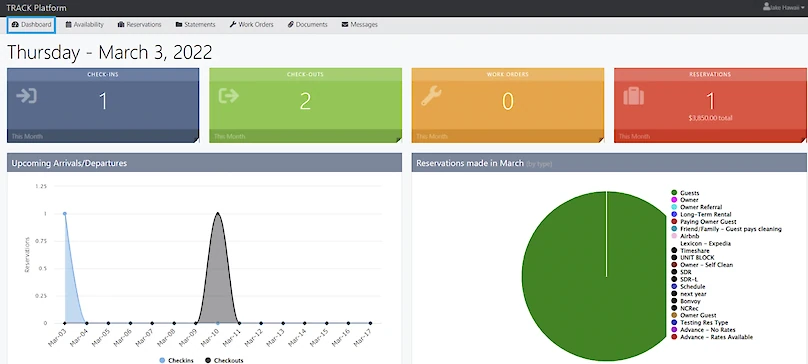
    When first logging in to the Owner Portal, you will reach your Dashboard. This screen will show you:

    ● The number of check-ins (arrivals) and check-outs (departures) occurring in your Unit(s) during the current month.

    ● The number of Work Orders performed in your Unit(s) during the current month.

    ● The number of new Reservations (bookings) that have been in your Unit(s) during the current month, along with the sources of those bookings.

    A dashboard showing Thursday, March 3, 2022 with tiles for Check-ins (1), Checkouts (2), Work Orders (0), and Reservations (1), plus charts of arrivals/departures and reservations by category.

  • 2. Availability

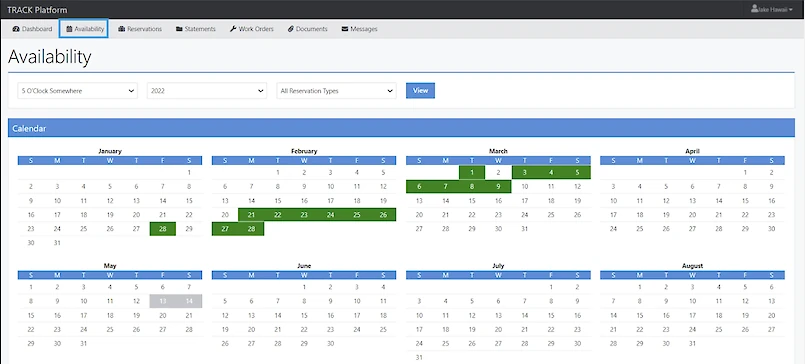
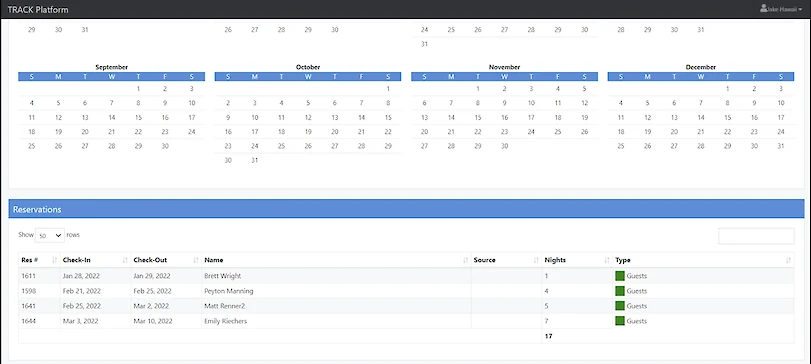
    Here, you are provided with Reservations (bookings) across your Unit(s) for the current year (as well as prior years, using the year drop-down), in both a calendar view and list view.

    Helpful tip: if you own more than one Unit, you can toggle between your Units using the Unit drop-down list.

    A software dashboard shows an Availability calendar with months Jan–Aug, highlighting days in green for available slots and blue headers.

    A calendar view shows September–December, plus a reservations table with guest names, check-in/out dates, source, nights, and type.

  • 3. Reservations

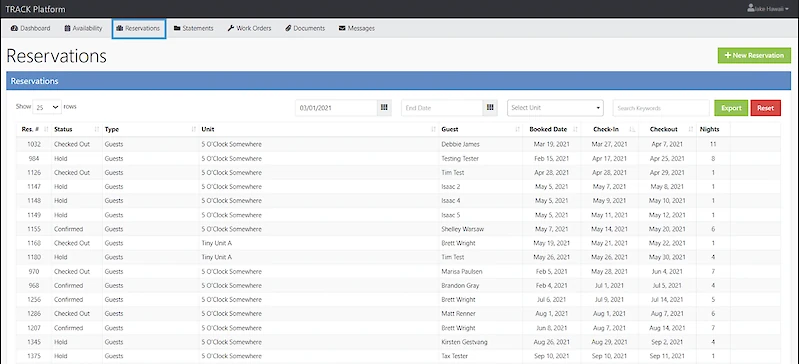
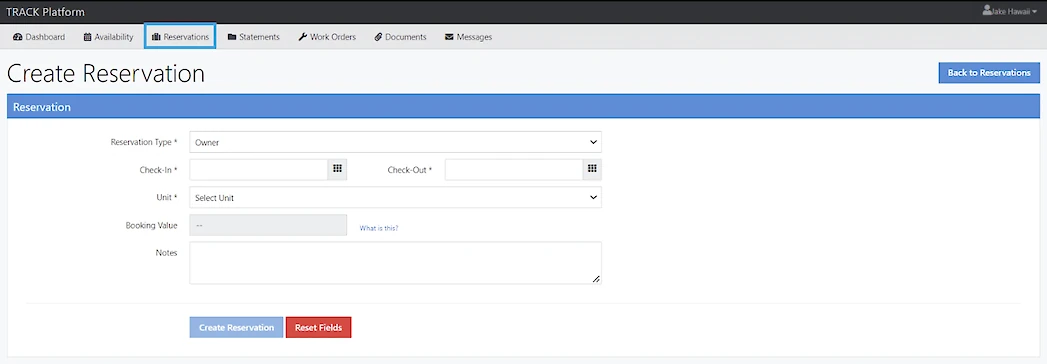
    Here, you can see all prior, current, and future Reservations in your Unit(s). You can also create a new booking in your Unit(s), by clicking the green “+New Reservation” button towards the top-right corner.

    A hotel reservation list on a dashboard showing rows of guest bookings with names, dates, status, and actions, in a TrackPal style interface.

    A screenshot of a "Create Reservation" form in a web app. Fields for Reservation Type, Check-In, Check-Out, Unit, Booking Value, Notes, with buttons Create Reservation and Reset Fields. Navigation bar at top with tabs like Dashboard, Availability, Reservations. Ends with a back button.

  • 4. Statements

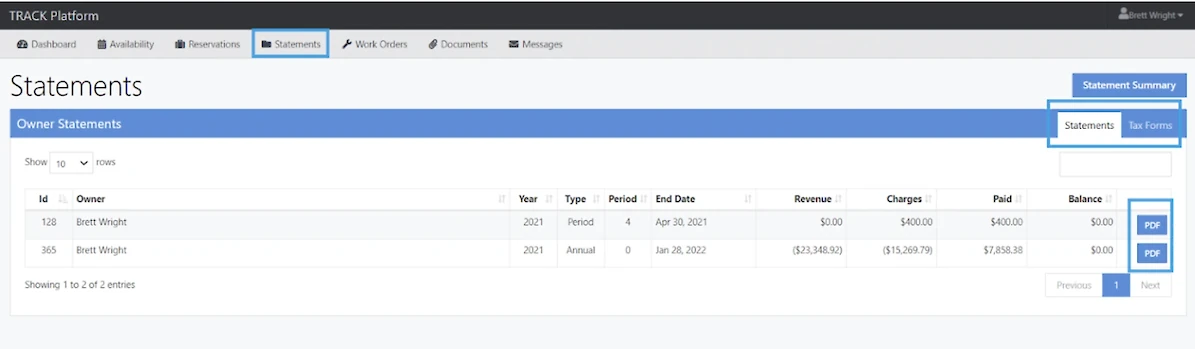
    You can see your monthly Owner Statements here, once they’ve been published; year-end tax forms are also accessible here. Access either type of document by clicking on the applicable line item’s PDF button.

    A screenshot of a “Statements” page in TRACK Platform, showing owner statements with revenue, charges, and balances, including PDF export.

  • 5. Work Orders

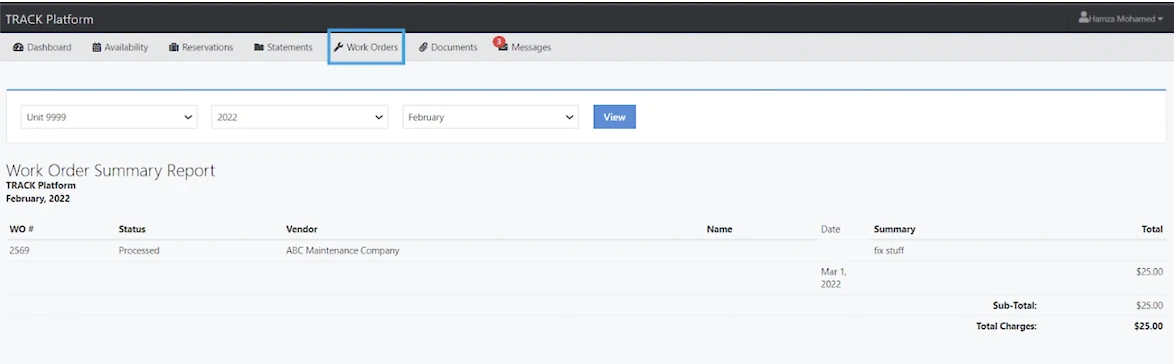
    You will be able to see Work Orders that have been completed in your Unit(s), by month, along with any associated charges that you’ve incurred from any of those Work Orders.

    A screenshot of a TRACK Platform showing the Work Orders tab with a summary table for February 2022, including one processed job and a $25 total.

  • 6. Documents

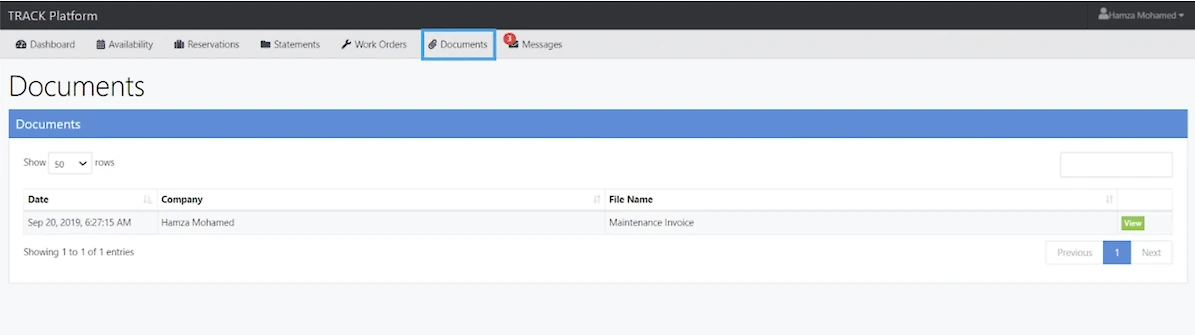
    Various documents may be shared with you; to access any Documents you see here, click the applicable line item’s View button.

    A screenshot of a web app's Documents page showing a list with one entry: date, company, and file name “Maintenance Invoice,” plus a View button. 140 characters, ending with a period.

  • 7. Messages

    On this tab, you can access messages sent to you, as well as generate a new message. This is where your calendar request will appear.